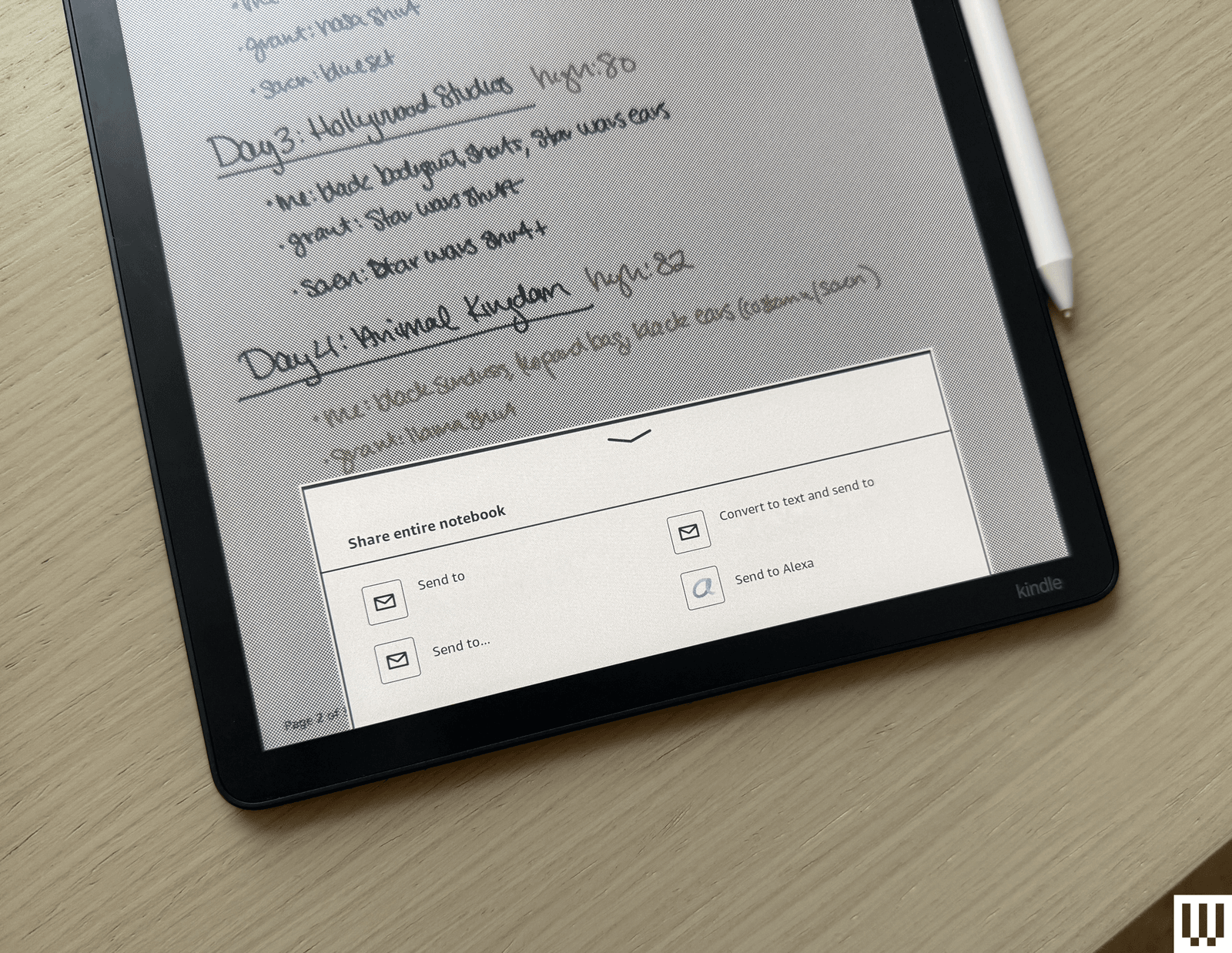
Alexa+ has been rolling out to users across the board (well, users with Prime, that is) as its Early Access becomes more widely available. Now, there’s a new feature to explore if you’re also a Kindle Scribe user: Send to Alexa. This lets you send your Kindle Scribe notes to the AI-powered assistant so you can ask questions about them without having to refer back to your Kindle.
It won’t automatically do this with all your notes. You’ll need to manually share either the entire notebook or a specific page with Alexa, using the share tool. You’ll also need to have the third-generation Kindle Scribe or Kindle Scribe Colorsoft, though Amazon says this feature should eventually come to older Kindle Scribe models, and to the Kindle Scribe Without Front Light due out this year. If you’re looking for an exact breakdown of how to use this feature, keep reading.
I took the new feature for a spin, and it does work. Alexa+ did a good job analyzing my notebook full of my notes and plans for a week-long family trip to Disney World, and was able to decipher some of the quick codes I used to refer to the parks or specific Disney terms, and was able to add alerts based on notes I made after I asked. It could not, however, fully decipher another note I sent that was entirely in cursive.
Will it change your life? Probably not, especially since you need to manually send any notebooks or pages to your Alexa+ powered device in order to ask your smart speaker about them. Alexa also won’t know if you changed something in your notes unless you resend it and have the assistant analyze the note again. But as an avid digital notetaker, this is one of the only features I find myself excited to use.
How Send to Alexa Works
To use Share with Alexa on one of the new Kindle Scribes, you’ll need to have Alexa+ active on your account. Your Kindle and Alexa devices must share the same Amazon account. If one family member manages the Kindle account and another manages the smart speakers with different email addresses, you’ll run into issues.
Once Alexa+ is active, go into the notebook you want to share and tap the share icon in the upper-right corner. (You’ll likely need to tap the top of the page for the menu bar to appear.) Once you click it, it’ll ask if you want to share just the page or the notebook. Both options can be used to share with Alexa. Once you choose one of those, a new menu will appear at the bottom of the screen with a prompt to send to the email your Amazon account is linked to, and a “Send to Alexa” option should be underneath those. Click it and you’re good to go.
Once you’re ready to ask about the notes you sent, you’ll want to prompt Alexa with a question like “Provide a summary of [notebook name].” I asked things like, “Give me a recap of my Disney planner notes,” and “Did you get my to-do note?” which prompted Alexa to tell me she found a Quick Notes document I sent.
Analyzing the Analysis

The summaries Alexa gives are pretty simple, though the Disney one was much more accurate than the to-do list, since the Disney one didn’t exclusively use cursive. I was able to ask questions like, “What days do I need to book Lightning Lane?” and would get an accurate response of which days I’d written down to book my Disney World Lightning Lanes. I wasn’t able to get a fully accurate to-do list; it said things like “set up robot role” instead of my bullet point to “set up robot vac,” and “Unite Alexa Stay” instead of my item to “Write Alexa story.” (Yes, that’s this story.)
It was a solid conversation starter, at least, and gave Alexa a good basis for what I wanted to talk about and handle. I was also able to ask if it thought I was missing anything from my packing list that was exclusively clothes and shoes, and the assistant did flag that I should pack sunscreen, a charger, and a small backpack. It’s correct, but the real thing I need to be reminded to bring is toothpaste. But I’m not sure Alexa can save me from chronically forgetting to bring toothpaste.
Using it for work and analyzing meeting notes is also an option.
Overall, I wouldn’t call Alexa’s answers extremely detailed, and I’m not walking away from the conversation with a full packing list like I might if I were using a tool like ChatGPT. Still, it’s a handy thing to be able to talk some of this through with Alexa if I were feeling stumped on what else I needed to do. Even getting the short list of reminders made me think of what else I wanted to add.
The Gadgets You’ll Need
If you’re reading this story and curious about shopping for the devices you need to use these features, these are the Kindle and Echo devices I used in testing.
Disclaimer : This story is auto aggregated by a computer programme and has not been created or edited by DOWNTHENEWS. Publisher: wired.com