If you’re running out of storage space on your laptop or you need to back up your data and store that backlog of videos you’re going to edit one day (I am, I swear), an external hard drive can solve your problem. The trouble is, there are hundreds of drive options ranging from dirt-cheap to crazy-expensive—which one is right for your needs? I’ve tested dozens, across operating systems and with different use cases in mind, to find the best external hard drives for storage, backups, gaming, video editing, network-attached storage (NAS) devices, and more.
Check out our other guides, including How to Back Up and Move Your Photos Between Services, How to Back Up Your Digital Life, and How to Back Up Your iPhone.
Updated March 2026: We’ve removed some discontinued drives, added the TerraMaster D1 Pro SSD enclosure, and noted the rapidly rising price of SSDs due to data center growth. We’ve also updated prices and links throughout.
Best for Backups
The AI race and its attendant flurry of memory-hungry data centers is causing memory prices to skyrocket. Unfortunately, that includes hard drives, especially SSD drives. If you feel like prices have doubled since that last time you picked up a drive, well, it’s not your imagination. They really have. 8-TB SSDs are selling for more than the price of a new MacBook Air.
You know what data centers don’t seem to need, though? Spinning drives. While the price has crept up some here as well, older drives remain affordable and are you best choice for backups anyway. For incremental backups, which we recommend, speed isn’t a huge factor.
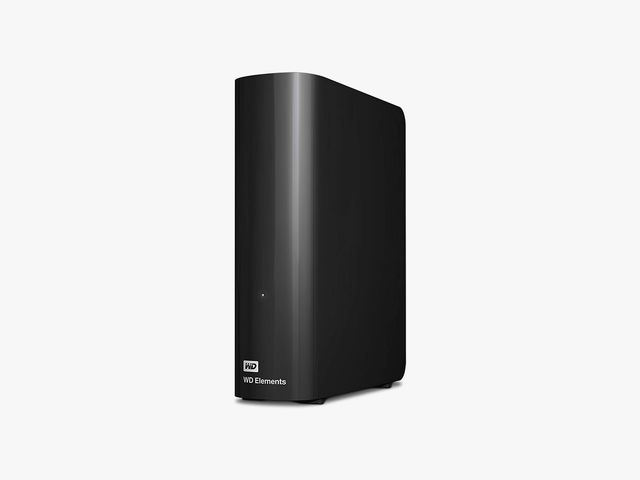
I have been using a variation of the Elements desktop hard drive to make incremental backups of my data for more than a decade. These drives are big and require external power, but they’re some of the cheapest, most reliable drives I’ve used.
Transfer speeds are not off the charts—the Elements drive I tested scored 120 megabytes per second (MB/s) for sequential writes on Windows—but again, you should ideally be running backups overnight anyway, and even at these speeds the average PC backup will be done by morning. These drives use USB-C with support for USB 3, and I’ve had no problem using them with Windows, macOS, and Linux.
Storage options go all the way up to 20 terabytes. Just check the prices; sometimes you can get a 10- or even 12-TB drive for not much more than the 8-terabyte version. And I have not seen a huge difference between the Elements line, the WD My Book drives, or the WD My Passport drives. The My Passport drives command a premium price because they’re smaller, and the My Book drives have some encryption features that drive up the price, but I find the basic Elements drive is sufficient for most people.
- Seagate Expansion 8-TB External Hard Drive for $195: Seagate is another reliable drive maker. It never hurts to have more backups, and if you do want multiple backups, use drives from different brands, since it will reduce the chance that both fail simultaneously.
Best for Portable Backups
-Reviewer-Photo-SOURCE-Scott-Gilbertson.jpg)
If you travel a lot, you’ll want something that’s easier to carry than the Elements drives, which aren’t the best in a suitcase. For backups when traveling, I love Western Digital’s My Passport series, especially the new “Ultra” version, which uses a standard USB-C cord, eliminating the need to carry a separate cable. It’s not the thinnest drive on the market, but it’s less than an inch thick and solid enough that I never worried about tossing it in my bag. (Although it should be said that this is a spinning drive, so don’t literally toss it.) I also like that the corners are nicely rounded and there are no screws or anything else that will catch on fabric in your bag.
There are a variety of colors available and you can get from 1 TB to 6 TB. I tested the 5-TB model, but Western Digital claims the same speeds regardless of drive size. I tested it using CrystalDiskMark on Windows, AmorphousDiskMark on macOS, and KDiskMark on Linux and averaged the results to come up with 121 MB/s for read speed and 115 MB/s write speed. It’s not what you’d want to copy photos quickly for a client in the field, but fast enough to run a daily backup in your hotel room.
- Western Digital Elements 5-TB Portable HDD for $135: This drive is slightly thinner than our top pick, but feels flimsier in my experience. Speeds are tad slower as well, but if you’re on a budget this will save you a little cash.
Best USB5 Drive: The Thunderbolt 5
-Reviewer-Photo-SOURCE-Scott-Gilbertson.jpg)
LaCie Rugged Pro5 ditches the iconic orange padding for blue, but it is otherwise just like the ordinary LaCie padded drives on the outside. On the inside, this is an amazingly fast drive. The 5 in the name is for, you guessed it, Thunderbolt 5, which despite being announced seemingly forever ago, has been painfully slow to trickle onto the market. This made testing a bit tricky, but fortunately a friend let me borrow his brand-new MacBook Pro 14 for testing. The results were impressive.
LaCie claims read/write speeds of up to 6,700 MB/s and 5,300 MB/s, which it says are enough for real-time editing of 8K and 6K RAW footage. In testing the highest speeds, file transfers were 5,787 MB/s read and 5,188 MB/s write—which, while not quite matching the claim, is still far and away the fastest drive on the page. But raw speeds are just numbers for spreadsheets; I was more interested in real-world performance. Since I happened to also be testing the Nikon Z6III (8/10, WIRED Recommends), which can shoot 6K ProRes RAW, I loaded a good bit of footage on the Pro5 and was indeed able to edit using DaVinci Resolve Studio.
The downside here is the price. This started off at $600 for the 4-TB version (which is the minimum you’d want for working with ProRes RAW video files). That was already pricey, but these days that’s climbed to insane heights ($1,400 as of this update), making it a less compelling value. Still, if you need the speed, this is the drive to get.
Best USB4 Drive

If you don’t yet have any devices with Thunderbolt 5 support, this Thunderbolt 4 drive would be my recommendation for anyone obsessed with speed. Corsair’s EX400U is an impressive little drive, consistently delivering speeds of around 3,800 MB/s for sequential read and and 3,550 MB/s write. Again, this is only going to be possible if you have a device that supports USB4/Thunderbolt 4 (including recent MacBooks, Dell XPS, and others—see our guide to the best laptops for more). Technically, just as I was wrapping up this update, Lacie’s new rugged SSD came out which beat this drive in my tests by about 10 MB/s, but this drive is smaller, lighter, and cheaper.
I also like that Corsair has included a Magsafe connector on the back of the case, which makes great option for backing up ProRes video footage from your iPhone. This little drive is also one that hasn’t so far had its price driven up into the stratosphere.
Best for Photographers

Crucial’s X9 Pro hits the sweet spot of speed, portability, and price to be one of the best drives out there for photographers looking to make backups in the field. These drives are tiny, about half the size of a deck of cards, and weigh a mere 1.3 ounces (38 grams). They’ll connect to just about anything. I tested the X9 Pro on Windows, Mac, Linux, Android, and iOS and never hit any issues with any of them. When it comes to speed, the X9 Pro claims symmetrical read and write speeds, at 1,050 MB/s. I actually consistently got higher speeds, up to 1,110 MB/s for read and 1,100 MB/s for write. That puts the X9 Pro at the top of the pack in terms of portable drive speed.
I’ve been testing the X9 Pro for several months now, and while I can’t yet speak to the long-term survival rate, I have been testing X6 and X8 drives from Crucial for over two years now without issue. There is also the X10 Pro drive ($275), which offers even faster speeds if you have a PC that supports USB 2X2. (The latest Intel chips support this spec, but Apple does not, so there’s no point in buying the X10 Pro if you have a Mac.) I do not own a PC that supports USB 2X2 for extensive testing, but I did get a chance to at least try it, and the X10 Pro does indeed deliver on its promise of 2,100 MB/s (I got it up to 2,050 MB/s). If your hardware supports it, the X10 Pro is worth the extra money.
Best Tiny Drive

Seagate’s new Ultra Compact SSD straddles the line between USB thumb drive and traditional external drive. The size, design, and built-in USB-C connector make it a thumb drive, but the drive inside is much faster, offering 1,000 MB/s throughput via USB 3.2 Gen 2 (10 Gbps). In my CrystalDiskMark test, it managed 1034 MB/s and a write speed of 1018 MB/s. While not as fast as some of the new Thunderbolt 5 drives coming on the market, it is still way, way faster than most USB sticks. Performance-wise, this is a more compact, down-market version of the X9 drive above (LaCie is Seagate’s high-end, Mac-focused brand). You do get slightly less performance for the money, but the compact, no-cable-needed form factor might be worth it to some people.
My one gripe with this drive is that it’s on the wide side for a thumb drive, which means that if your laptop has USB-C ports close together it might cover two. You can mitigate this by ditching the rubber housing, but then you lose some of the protection (the drive with housing is rated to withstand 3 meter drops and is IP54 rated for dust and water resistance). It also goes in and out of stock frequently. Seagate’s Ultra Compact SSD is one of several SSDs adopting the thumb drive form factor. We’ve also tested and like the SK Hynix Tube 31, which is featured in our guide to the Best USB Flash Drives.
- Kingston XS1000 2-TB for $269: This tiny little drive is one of the smallest in this guide. Like the Crucial X6, it has a mostly plastic enclosure, but it has withstood life in my bag quite well. While it’s not as robust as the padded options below, it’s strong enough for most things. It’s also speedy. Kingston claims up to 1,050 MB/s. I never managed that, but I routinely hit around 800 MB/s, with some older laptops closer to 600 MB/s, which is still quite good. The drive bogs down a bit with large files (MP4s, for example), so it’s not the best for pro videographers, but for everyone else, this is a solid, slightly cheaper option.
Best Go-Anywhere Drive

If you need a drive that can stand up to life in a backpack or camera bag, get wet, or handle a drop onto hard surfaces, OWC drives are your best choice. It’s tough to pick a winner here because there are many solid options, but OWC’s Elektron drive narrowly beat others in benchmark tests. I also like that you can swap out the drive inside the aluminum casing (it’s easy to unscrew), which means two years from now, you can pick up a faster bare SSD and drop it in the hardy Elektron enclosure.
- Sabrent Rocket Nano 1-TB SSD for $170: I really like this one. It’s smaller and slightly faster than the OWC, but it has two drawbacks. The first is that it can get hot. If you’re trying to work with it in your lap, it can be downright uncomfortable. The other issue is that sometimes it’s slow to be recognized by my PC. I could find no pattern to this; sometimes it appeared right away, and other times it took a couple of minutes. If those things don’t bother you, this drive is tiny.
Best Padded Drive

Samsung’s T9 has been my go-to portable drive for a couple years now. While I do like the LaCie drives that usually dominate this category, the Samsung is plenty fast. The 20-Gbps T9 was able to take full advantage of that speed, clocking in at over 1350 MB/s, handily beating the Crucial X9. The T9 also seems to have a lower power draw, or at least when I plug it into my Android tablet it drains the battery far less than any other drive I use regularly.
The padding on the T9 is less than what the LaCie drives offer, but it’s also considerably cheaper and has help up well to life on the road. The only catch is that its not waterproof or dust proof. The padding stops on the ends so it’s not completely sealed. I haven’t had any issues, but if you get it wet it will be a problem. If you’re worried about that, check out the T7 Shield below.
- Samsung T7 Shield 2-TB SSD for $395: This is very similar to the above, but it adds an IP65 rating, which means it’s fine in the rain and is protected from dust and sand. The T7 line is notable for its built-in security features like hardware-based encryption, but unlike the Touch model, the Shield does not have a fingerprint reader.
The Best DIY Drive Enclosure


With the price of hard drives skyrocketing, reusing an SSD that you already own becomes a compelling alternative. There are a couple of drive enclosures that have just hit the market, promising 80 Gbps speeds (with compatible USB 4 ports). The D1 is available in two flavors: the 80 Gbps drive I tested and a slower 40 Gbps version, which makes more sense if you don’t have USB 4. If you do though, this is an incredibly fast drive and, thanks to the heat-dissipating design, it never throttled on me.
The D1 Pro supports the full suite and USB specs, from 2.x all the way up to 80 Gbps USB 4, as well as Thunderbolt 4 and 5. To get the top speeds you’ll need to have the USB 4 port and use a PCIe 4 or 5 drive inside, but if you do expect to see speeds in the neighborhood of 6,500 for sequential read/write (the CrystalBenchMark score was 6,597 for read and 6,239 for write). It’s also plenty fast in the real world, having no trouble serving up 4K clips for my Davinci Resolve Studio video editing test.
If you have the PC to support it and a drive that can take advantage of it, this is the fastest setup for an external SSD that I’ve tested.
Best Gaming Drive

Take this category with a grain of salt. Most of the drives here will work just fine for gaming (just stick with the fastest you can afford). That said, Western Digital’s new P40 does have some cool RGB lights on the bottom if that’s your jam. In my testing, that didn’t seem to impact power consumption.
As for speed, my tests were inconsistent. This drive is capable of speeds that handily beat both the Envoy Pro and Samsung T7, but at other times it seemed to bog down (at least in benchmarks). In real-world use, the bottleneck I consistently hit was some lag in transferring huge amounts of data. That might be a deal-breaker for some, but for the price, it remains a solid choice.
Best Bare Drive

If you want to put a bigger SSD in your laptop, all you need is a bare drive, which is generally cheaper than the drives with enclosures listed above. The first thing to figure out is which drive your PC uses. Consult your manufacturer’s documentation to find out. These days the most common form factor is M.2 2280, which is the long, thin drive in the image above. More compact laptops may use the similar, but shorter, M.2 2242 design. Again, check your PC to confirm the drive it needs before you buy. Of the dozens I’ve tried, Western Digital’s WD Black series has stood out for speed, and it doesn’t run very hot.
The SN 990 PRO SSD NVMe M.2 PCIe Gen4 achieved speeds of 7,458 MB/s reads in my testing, more or less matching the claimed 7,450 MBs / 6,900 MBs read/write speeds. If you’re doing a lot of drive-intensive tasks, like editing video or gaming, this drive is well worth the money. The largest version you can get is 4 TB, and the price is reasonable considering the speed. There are faster drives, but you’ll pay for them and I find that currently, beyond this drive there is a diminishing return in the speed vs price curve. I’ve been using this one as my main drive for several months months now and it works great for editing 5.2K video footage and compiling software. My favorite part? It generates very little heat.
- Western Digital SN850X 1-TB SSD for $235: Another fast one, Western Digital claims up to 7,300 MB/s read speeds, and in benchmark tests, this drive’s results came close. Like the Samsung above, to take full advantage of the speed here, you’ll need a system that supports the PCIe 4.0 SSD standard, but this is a great drive if you want to upgrade a gaming system, whether it’s a desktop PC or your PlayStation. This drive is also one of the few I’ve seen that’s available up to 8-TB capacity.
- Samsung 990 Evo Plus 2-TB for $273: The 990 EVO Plus is an upgrade to the very popular 990 EVO. The original did not offer anything compelling and never made this guide, but the new version manages to be impressively speedy and not overly hot, as many Gen 5 PCIe disks I’ve tested have been. The 990 EVO Plus also launched with a 4-TB model, something missing the first time around. In terms of speed it doesn’t quite match the SN850X above, topping out at 5,677 MB/s read, but it’s plenty fast for most uses and remains quite cool even when pushed. If you’re looking for a good all-around drive that stays cool, this one makes a good choice, though it is on the pricey side for what you get.
Disclaimer : This story is auto aggregated by a computer programme and has not been created or edited by DOWNTHENEWS. Publisher: wired.com