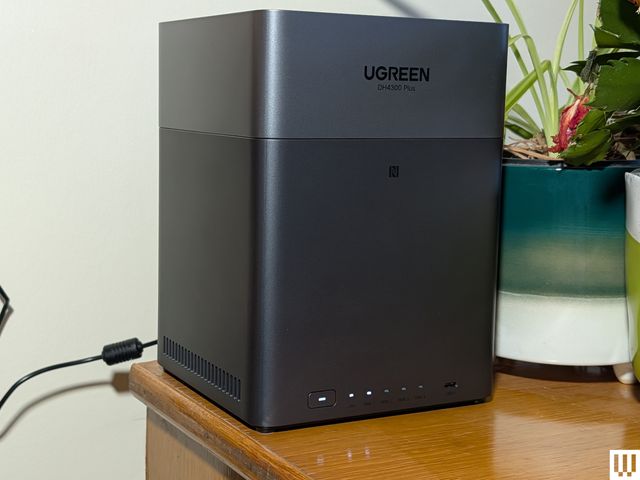
I’ve been toying with the idea of setting up my own network-attached storage (NAS) server for a long while, but I figured it would be a hassle. Lured by the idea of automatic backups and centralized content sharing that are detached from big tech’s increasingly untrustworthy servers, and further motivated by the creep of ads and ever-rising prices for streaming services, I finally did it. It turned out to be easy. As you get your digital life in order, you should do it, too.
Power up with unlimited access to WIRED. Get best-in-class reporting and exclusive subscriber content that’s too important to ignore. Subscribe Today.
Why Would I Want a NAS Server?
While it’s not for everyone, there are a few good reasons you might consider setting up your own server for personal file storage, even in an era where cloud backup services are convenient and inexpensive.
A NAS server is like your own private cloud, enabling you to store files and backups at home instead of on a third-party cloud server that could be located halfway around the world. If you don’t expose your NAS to the internet, you can keep everything completely private. If you do want to share with other folks, you can configure user accounts with different levels of access. I also discuss how to keep your NAS secure at the end of this guide.
As a writer, I’ve got a ton of files on my computer that need to be backed up. I have product photography, interview transcripts, half-finished drafts, and many other files that it would be a serious pain to lose. Naturally, I have the usual array of house and work documents, family photos and videos, and all that other stuff, too. Until now, I’ve been manually saving files on USB flash drives and backing up with a cloud service.
With a NAS server, I can ditch the flash drives and have an automated local backup running in various locations. It’s not a good idea to only have one backup or only have backups in a single location, so I’ll continue to double up with a cloud storage service. But this is still a big improvement over my previous routine.
As a family of four with a mix of different devices, it’s really handy to have a central repository for sharing photos, videos, vacation plans, creative projects, and important documents. Since this stuff is usually spread across a variety of cloud services and personal devices, a NAS server with an organized file structure is a major leap for us and one that genuinely makes life a bit easier.
I was an early adopter of streaming services like Netflix and Spotify, but as the content streaming scene has grown increasingly fractured, ad-polluted, and ridiculously expensive, it has steadily lost its appeal. I’m old enough to have a pretty large physical media collection, and I’ve been meaning to digitize it forever. Setting up my NAS server was the push I needed, and we now have a central repository of some of my favorite TV shows, movies, and albums.
It’s not a massively fun process, but if you’re planning to do the same, it’s pretty easy to rip Blu-rays with MakeMKV and compress with HandBrake. Set up Jellyfin as your streaming app, and it automatically pulls in art and information to give you a Netflix-style interface. I’ve installed Jellyfin on all our TVs, phones, and tablets, so we can stream stuff locally with ease, and I’m really happy with how well it works. Many people prefer Plex.
There are several other potential uses for a NAS server. Here are a few things on my list:
- Home assistant for local smart home control and automations
- Security camera local recording and monitoring
- Minecraft server for the kids
Most of the ways I’m using my NAS server allow me to cut back on subscriptions, which helps to offset the cost. In the long-term, running a lot of this stuff locally will be a money-saver, but it can also help you maintain control and privacy.
This is by no means an exhaustive list; you might consider a NAS server to run a local AI assistant, filter trackers on your network with Pi-hole, or set up remote file sharing and collaboration. I’m still working out the best way to set up Proton VPN to access my NAS from outside of the home.
What Do I Need for a NAS Server?
There are a few prerequisites for setting up a NAS server. Here’s what you need.
First, you need to settle on a NAS server. You can build your own or choose an off-the-shelf device. There’s a huge range, and they vary in setup and configuration complexity. I wanted something easy, and so I initially went with the Ugreen NASync DH4300 Plus, which has space for four storage disks and supports up to 120 TB. I found it very easy to set up and configure. I inserted the hard drives, plugged in power, connected the Ethernet cable to my router, installed the Ugreen NAS app on my phone, created an account, and formatted the drives.
Because the DH4300 Plus can run Docker, you can add just about any app you might want, and it’s quick and simple to install them. Docker is an open-source platform that lets you install apps in separate containers (small execution environments that contain everything they need to run). Ugreen also includes a bunch of straightforward apps for things like photo sharing.


If your needs are more modest, the two-bay Ugreen NaSync DH2300 ($200) could be enough. I tested it, too, and found it just as easy to use as its bigger sibling.
Next up, I will test the Zettlab D4 AI NAS, which boasts built-in AI capabilities for conversational search, so you can upload disorganized text, audio, image, and video files, and use local AI to filter them. I also plan to test NAS devices from Synology, Terramaster, QNAP, and Asustor. Expect a full guide soon.
You might have some old hard drives you want to use, but you can snag new hard drives quite cheaply. You can also use SSDs for maximum speed and reliability. I’ve gone with a couple of new Seagate Ironwolf 4TB ($100) drives, alongside a pair of old drives I already had.
If you want multiple folks in the house to stream content and share files on your NAS server, you need a fast network. A good router or mesh system is essential, and you’ll need to connect your NAS server to your main router using an Ethernet cable. Pay attention to the speed of the ports on your router and NAS server, and also the capabilities of your Ethernet cable.
This might not be an absolute necessity for you, but if you ever get power cuts or you have data on your NAS that you can’t afford to lose, it is worth considering an uninterruptible power supply (UPS). Technically, while there might be no ill effects from a sudden power loss, it could cause you to lose data. It’s a gamble to live without one.
The CyberPower 1000VA Battery Back-Up System ($140) gives you six battery-backup outlets and another six surge-protected outlets, and can run for two minutes at full load or 10 minutes on half load.
The Amazon Basics UPS 600VA Battery Backup and Surge Protector ($62) gives you four battery-backed outlets and another four surge-protected outlets, and can run for two minutes at full load (just enough time to shut stuff down properly).
Many portable power stations also have UPS functionality.
Securing Your NAS
If you plan to access your NAS from outside your home, then you definitely need to consider security. It’s not a good idea to expose your NAS directly to the internet through open ports on your router, so use a VPN service instead. It will keep your traffic encrypted.
You may assume your NAS is secure behind your router if you only plan to use it locally, but you should take some extra steps to make sure. If one of your devices was infected with malware, it could spread laterally to your NAS if you don’t secure it properly. There will likely be a built-in firewall option; my Ugreen NAS has one, and I used this guide to configure it.
I also recommend setting up two-factor authentication (2FA) on your account, so that anyone trying to log in to your NAS requires a temporary passcode, as well as your login details.
Disclaimer : This story is auto aggregated by a computer programme and has not been created or edited by DOWNTHENEWS. Publisher: wired.com