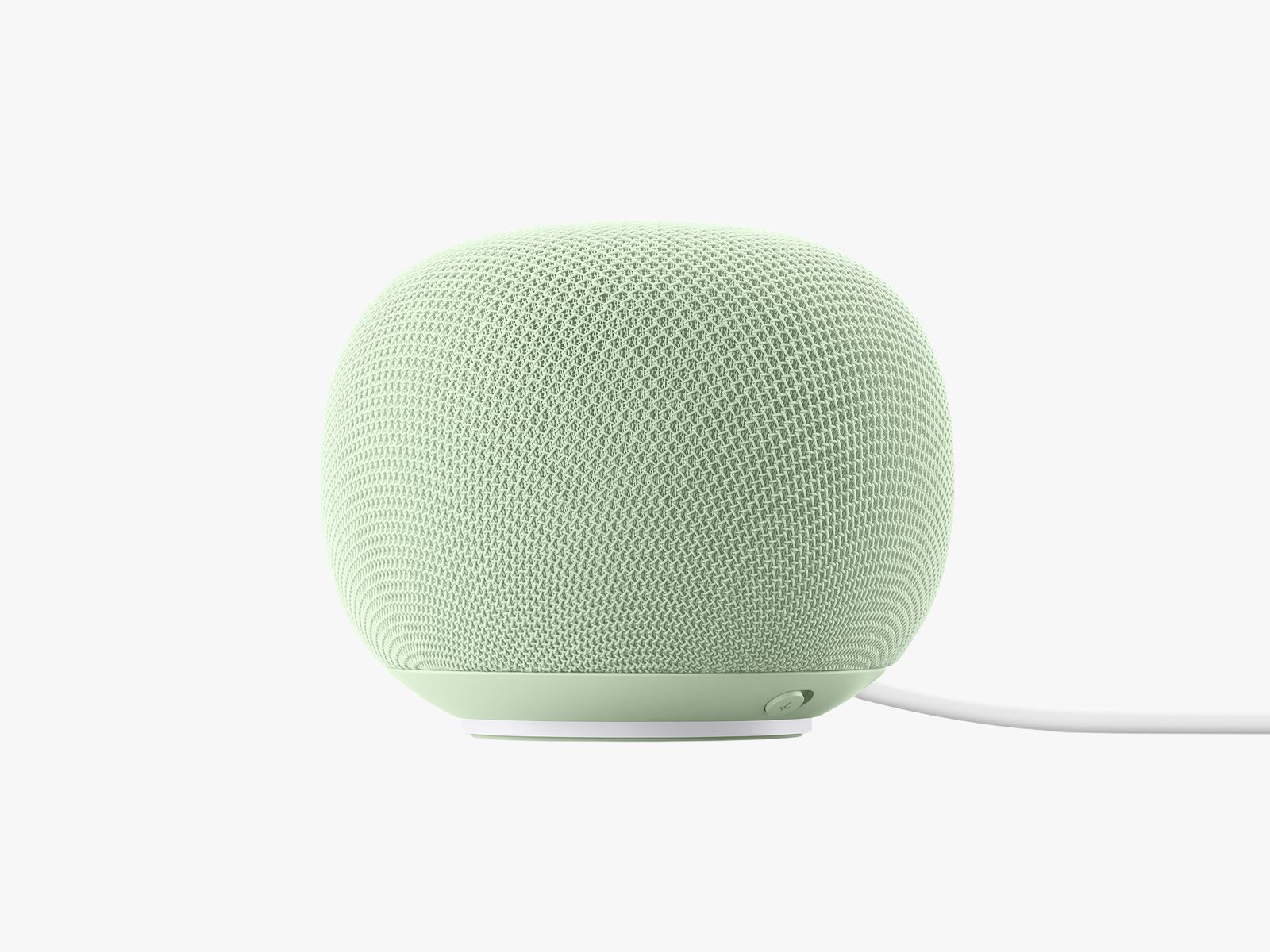
If you had to estimate how much data your smart speaker was using over the course of a couple of weeks, would you guess three terabytes? That’s what one Google Home Speaker user discovered when he checked his home Wi-Fi’s usage, according to Reddit posts reported on by 9to5Google. The Google Gemini-powered smart speakers have apparently been downloading huge amounts of data to the device over the past two weeks, which could put a serious damper on your Wi-Fi network.
While it isn’t happening to everyone, after checking my own home internet usage, I found out that I have been experiencing the same issue. My Google Home Speaker has used 487 GB of data in the last ten days, using almost as much as the entire rest of my home between August and September.
Google confirmed this bug has only affected some devices, and that they’ve rolled out a solution. A spokesperson from Google told WIRED: “A server misconfiguration caused some Google Home Speakers to repeatedly download a software update. This issue has now been resolved.”
Looking into this issue made me go beyond just Google’s usage, though. My husband and I started reviewing the data usage for all of the individual devices that our router could identify and found some surprising numbers. The weirdest highlight was that Amazon was listed as using 22 GB in the last week with only the Ring smoke detector set up in my house, which was similar to the use of one of the smartphones in my house. There’s also a mysterious device just labeled “WATCH” that used about 21 GB in the last week, but no one in my home has a smart watch that’s been on in the last year. A mystery for me to solve another day.
If you’ve noticed your home Wi-Fi bandwidth isn’t what it used to be, it could be because one of your smart home devices (or possibly something else entirely). Here’s how to check your router or Wi-Fi provider for what device could be at fault.
How to Check Your Device Usage

You have a couple of different options for checking how much data a smart home device has been using. Some routers provide detailed information about where all your data is going, for starters. I have an Eero mesh system for my house, but we don’t pay for its subscription fee to access detailed information—so it’s fairly limited. The free version of the app still lists all the connected devices in my home, but it doesn’t tell me how much data each uses.
There are a lot of routers that have subscription fees and paywalls that can hide this information and other features you might want. But our favorite subscription-free mesh Wi-Fi system comes from Asus, which also makes our favorite regular Wi-Fi router, and you can track and analyze traffic for free with an Asus router. Here’s how:
- Open the web interface (go to http://www.asusrouter.com/ in your browser) and log in.
- Click on the Traffic Analyzer tab and make sure it’s turned on (data is refreshed every hour).
- You can see the top five clients using data listed on the Statistic tab.
- You can also see live traffic in the Asus Router app on your phone.
Folks with a TP-Link router or mesh can also review traffic. Here’s how:
- Open the Deco or Tether app.
- Tap on the Network tab and select Traffic Usage.
- What you see will depend on the model you have, but with some routers you can toggle on In-depth Statistics for more detailed information.
Netgear only tracks overall traffic under Traffic Meter, you can’t break it down by device. For other manufacturers it’s worth poking around in the web interface (it usually gives you access to more data than the mobile app). If you’re looking to get more information without hitting a paywall, explore both our router and mesh Wi-Fi guides for recommendations.
But there’s another way. I used our internet provider’s app to check exact usage data. Mine is the AT&T app, but most internet providers should have an app or login you can use to check your data activity. My data appears right at the front of the app underneath my current usage. It’s more limited than the info you’d get from a dedicated router’s app if you did subscribe; I’m only able to view detailed data by today, the last seven days, my current AT&T billing period, or my over the last three billing periods. And the app only lists a handful of high-volume devices versus every device connected to the internet in my home.
But even that limited information revealed which devices were gobbling up the most data in the recent days and weeks, which is how we discovered the issue with both the Google Home Speaker and the Ring smoke detector.
Why Should You Check?
It’s not a huge issue for me that my Google Home Speaker has been guzzling my data. I have a large Wi-Fi plan (a must as a smart home tester), and it was patched quickly. On the other hand, I have unplugged it for the time being to make sure I don’t hit the two terabyte cap we have per billing period. But if you’re on a plan where massive downloads like this can cost you, or your signal is getting clogged up by mysterious devices, it might be time to check your data usage to find out which device is at fault. You never know when you’ll find a three-terabyte bug slowing down your whole network.
Disclaimer : This story is auto aggregated by a computer programme and has not been created or edited by DOWNTHENEWS. Publisher: wired.com